Open the web.config file with notepad (using administrator rights) C:\Programm Files\andagon GmbH\aqua for IIS\Web\Webservice\Web.config
Add the following lines to the web.config within the <configuration> tags <system.serviceModel><serviceHostingEnvironment aspNetCompatibilityEnabled="true" /></system.serviceModel>
Create the aqua project which shall be synced with SAP Solution Manager.
Import the SAP Solution Manager sync project template
Create a special aqua user for the SAP Solution Manager sync. This user must be project administrator for the aqua project which shall be synced, and must be able to login via API. This user must not be used for anything else. Document the username as it is needed afterwards.
Start the sync configurator and login into aqua
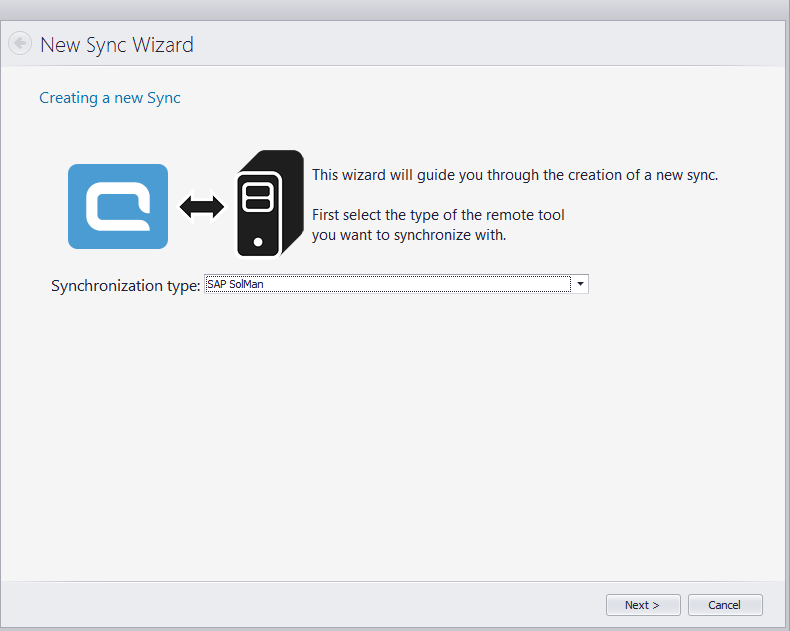
Create a new sync of type SAP SolMan
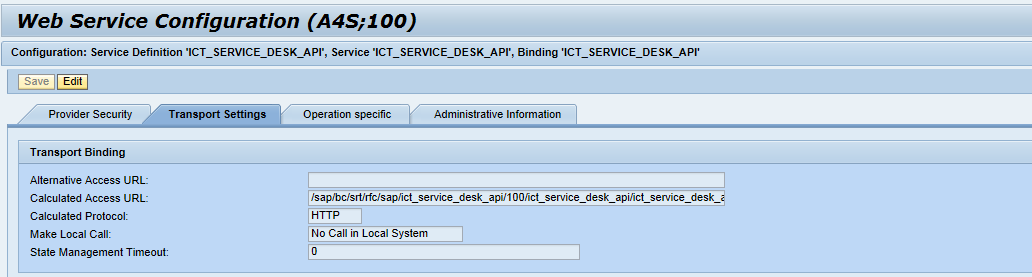
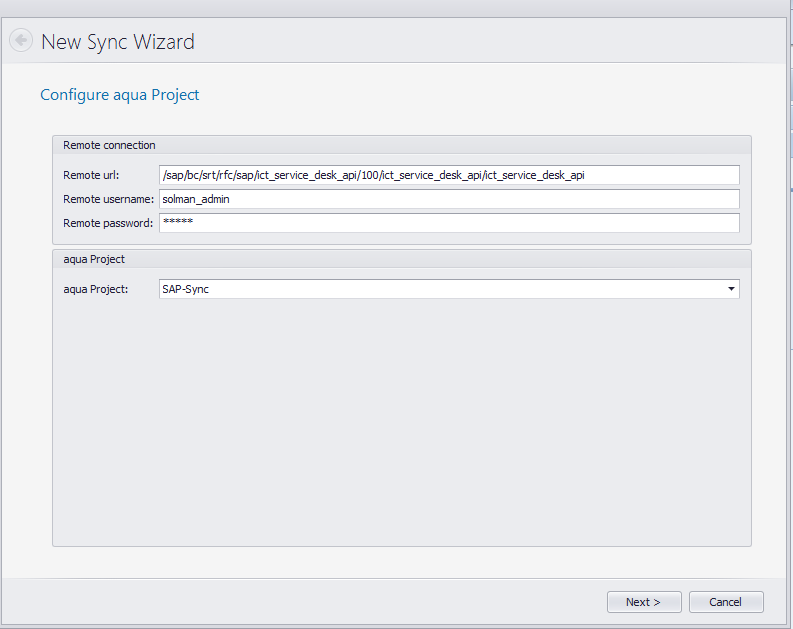
Enter the endpoint URL of the ICT_SERVICE_DESK API. This can be found in SOAMANAGER. You need to add the server name and port in front of the calculated access URL which is written in SOAMANAGER. Example URL: http://sap.andagon.com:8000/sap/bc/srt/rfc/sap/ict_service_desk_api/100/ict_service_desk_api/ict_service_desk_api
Enter the SAP Solution Manager credentials
Select the aqua project created in step 4, then click 'Next'. The sync wizard will create a partial sync config.
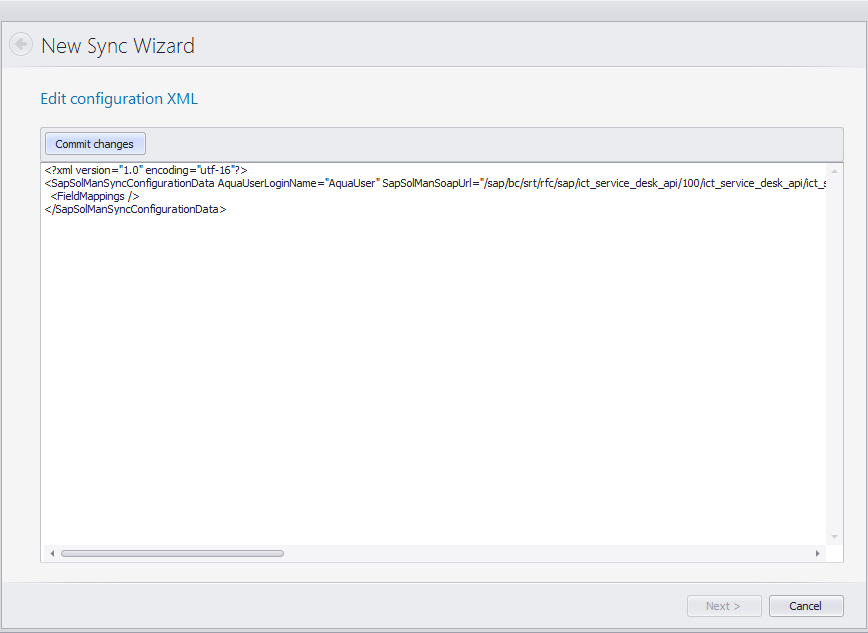
Edit the sync config
Set the aqua user used by the sync
Add the field mappings
Document the following information shown in the XML:
aquaSystemGuid
aquaServicePassword
Click on 'Commit Changes', then click 'Next' Find a sample config here.
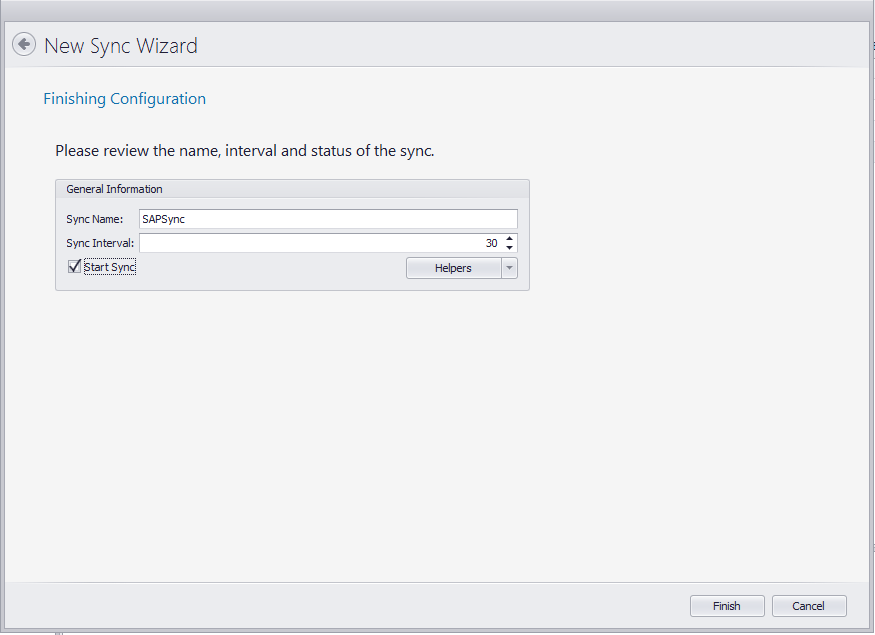
Enter a name for the sync
Set a reasonable time interval for the sync, e.g. 10 seconds
Check the 'start sync' checkbox
Optionally, you can now use the 'Helpers' button to fetch the field values for dropdown fields from SAP and copy them to the aqua project template