Configure web service client in SAP
-
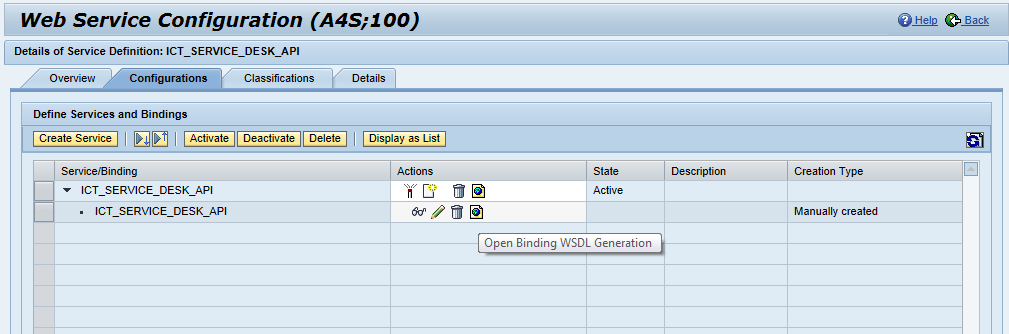
In SOAMANAGER, click on 'Web Service Configuration' in the tab 'Service Administration'
-
Search for Object Name 'ICT_SERVICE_DESK_API'
-
Click on 'ICT_SERVICE_DESK_API'
-
Click on 'Open Service WSDL Generation' (the small icon with the earth globe)
-
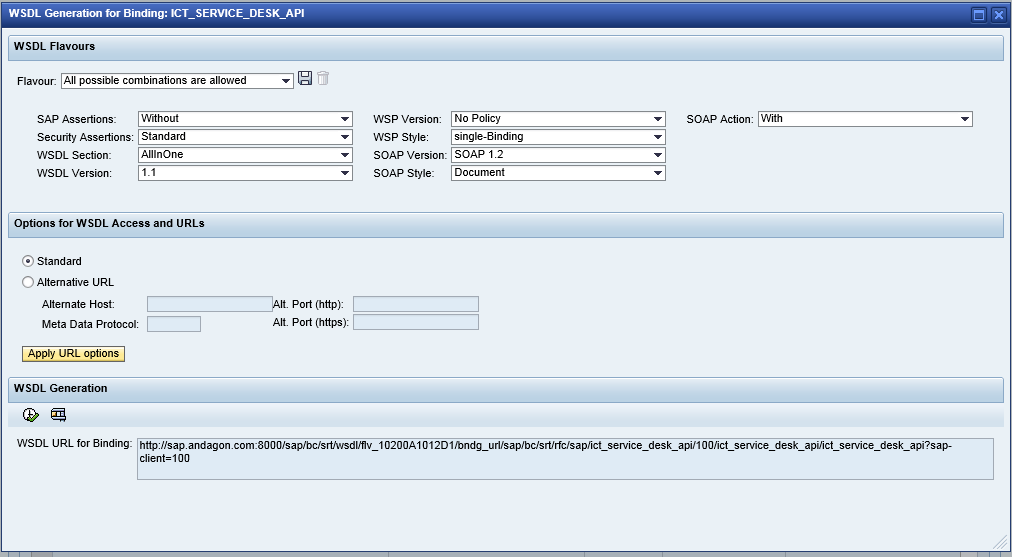
Select the following options:
-
-
Security Assertions: Standard
-
-
-
-
WSP Style: single-Binding
-
-
-
-
Copy the WSDL URL for later use
-
Go back to the search results
-
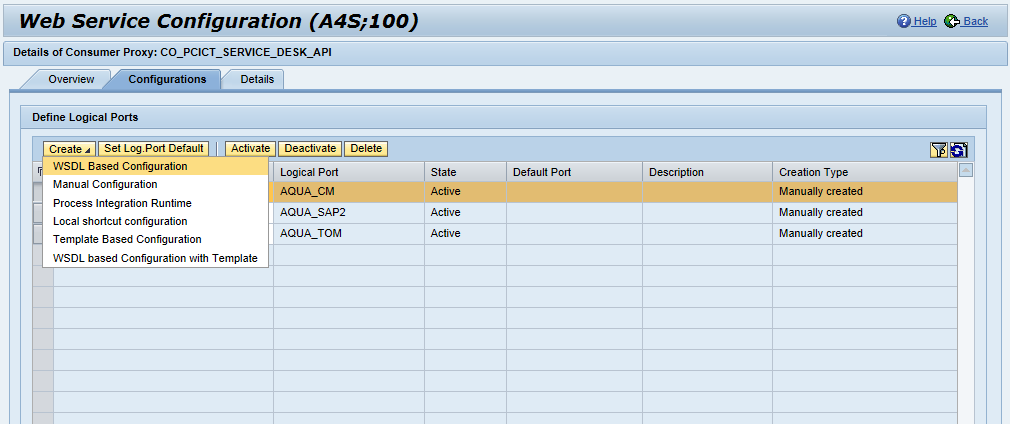
Click on 'CO_PCICT_SERVICE_DESK_API'
-
Click on 'Create' and choose 'WSDL Based Configuration'
-
Enter 'AQUA' as the logical port name
-
-
-
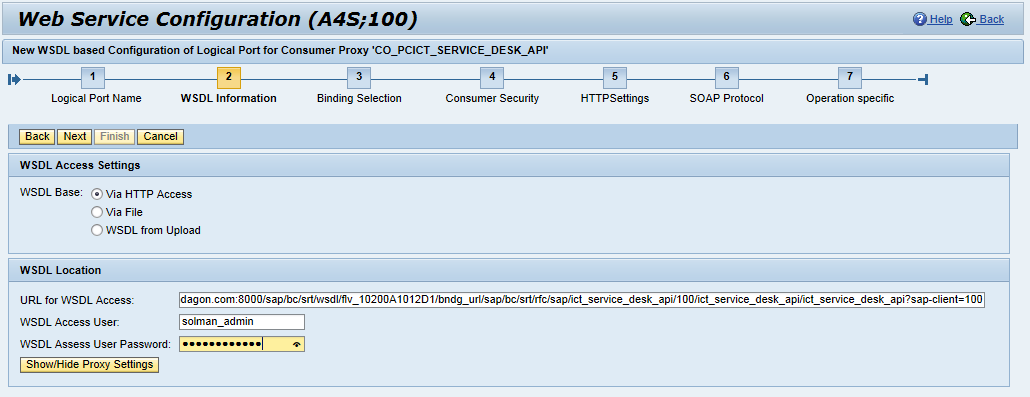
Paste the WSDL URL to 'URL for WSDL Access'
-
Enter your SAP Solution Manager username and password to be able to download the WSDL
-
-
-
Enter username and password:
-
Username: {aquaSystemGuid} (replace {aquaSystemGuid} with the value you wrote down)
-
Password: {aquaServicePassword} (replace {aquaServicePassword} with the value you wrote down)
-
-
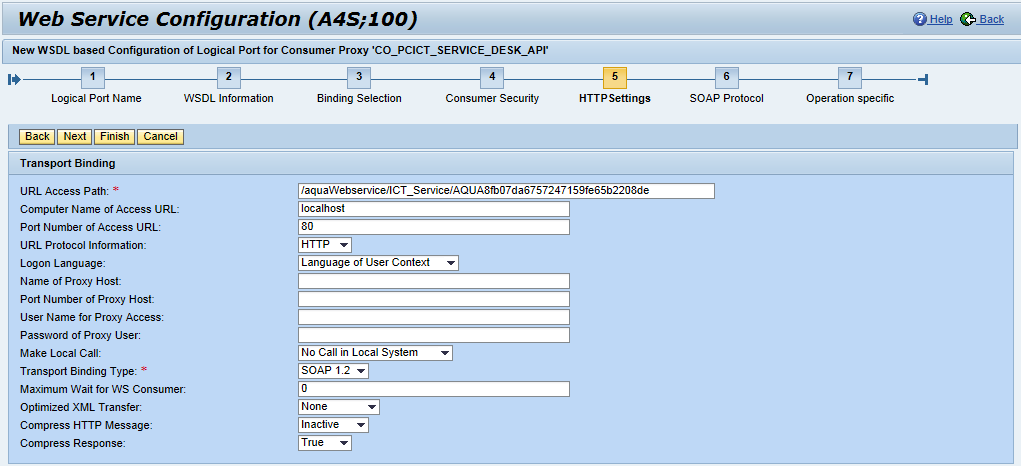
Enter the following information:
-
URL Access Path: /aquaWebservice/ICT_Service/{aquaSystemGuid} (replace {aquaSystemGuid} with the value you wrote down)
-
Computer Name of Access URL: enter your aqua server’s host name here
-
Port Number of Access URL: 80
-
Transport Binding Type: SOAP 1.2
-
-
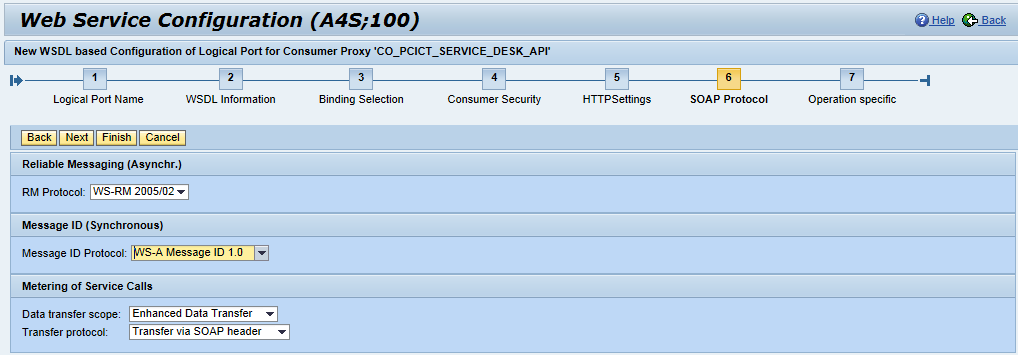
Enter the following information:
-
Message ID Protocol: WS-A Message ID 1.0
-
-
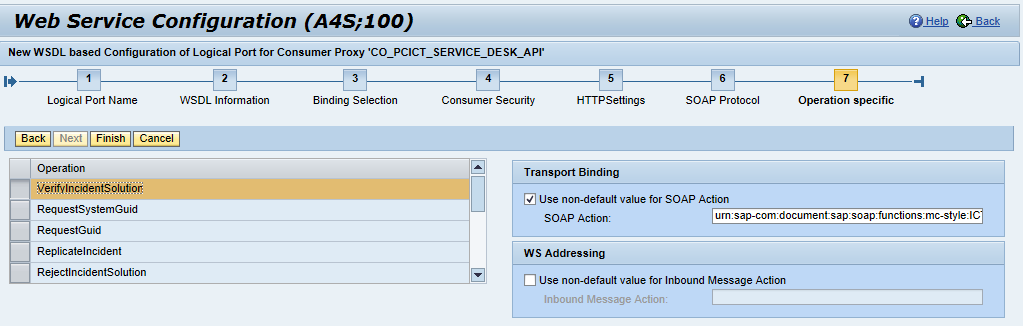
Make sure that for each operation the SOAP action is set.
-